
Frequently Asked Question
How to create a template and import it into P510K
You can follow 2 main steps to load your designed template into P510K
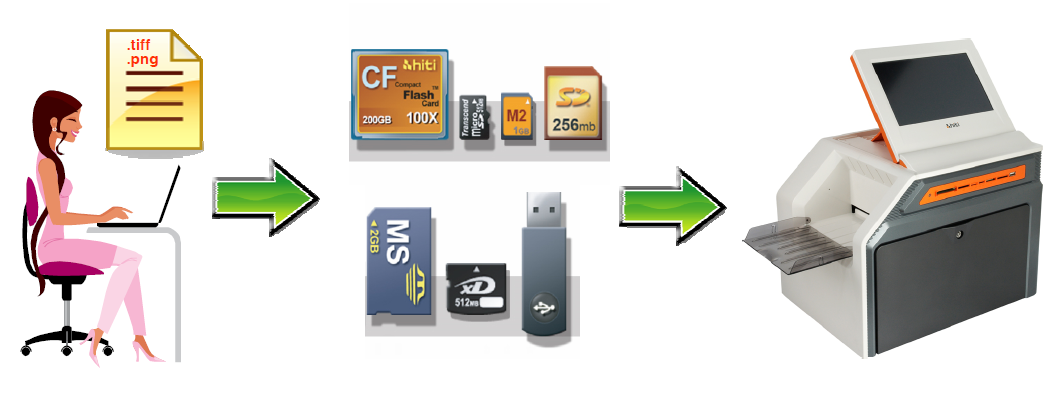
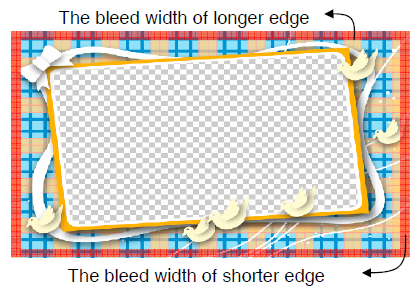
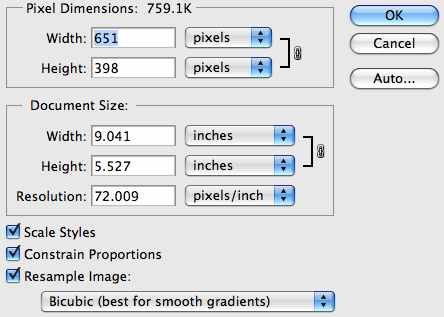
- Create a size-specified template with alpha channel (tiff and png)
- Import template into P510K
Create a template
During editing, the template size must follow the setting as below tablePhoto size | Editing size | The bleed width of shorter edge | The bleed width of longer edge |
4x6 | 1240x1844 | 40/2(3.4/2mm) | 44/2(3.7/2mm) |
5x7 | 1548x2140 | 48/2(4.0/2mm) | 40/2(3.4/2mm) |
6x8 | 1844x2434 | 44/2(3.7/2mm) | 34/2(2.87/2mm) |
6x9 | 1844x2740 | 44/2(3.7/2mm) | 40/2(3.4/2mm) |
Import template into P510K
1. Open 510K and go to Frame Tool page in P510K back-end.
Following is the function description and operation steps:- Choose Application – v1.4.6 only supports Frame application
- Choose size – you can select 4 sizes here(4x6,5x7,6x8, and 6x9)
- Choose layout – photo layout: portrait or landscape
- Import file – plug-in your storage device in 510K and press
, the system will show the fitted template(s) from your storage device upon 3 steps, any template you want to import to 510K could be multi-selected.
- Delete selected frame – using
button, you can delete the frame you choose one by one. However, you cannot delete system default frame.
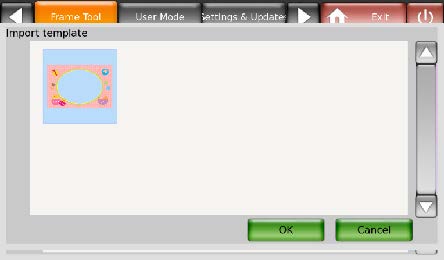
2. When you press “import” button, the fitted template will be shown on the new window. Templates could be multi-selected
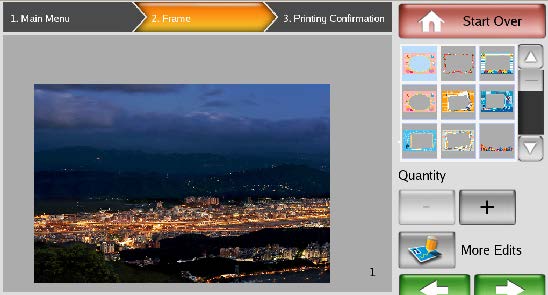
3. You could find the imported templates already shown on the front-end.
Updated 140331