
Frequently Asked Question
Taking a Capture: 360 Video
ACE KNOWLEDGE BASE · OPENSPACE
Start a 360° capture, mark the correct position and keep each floor separate.
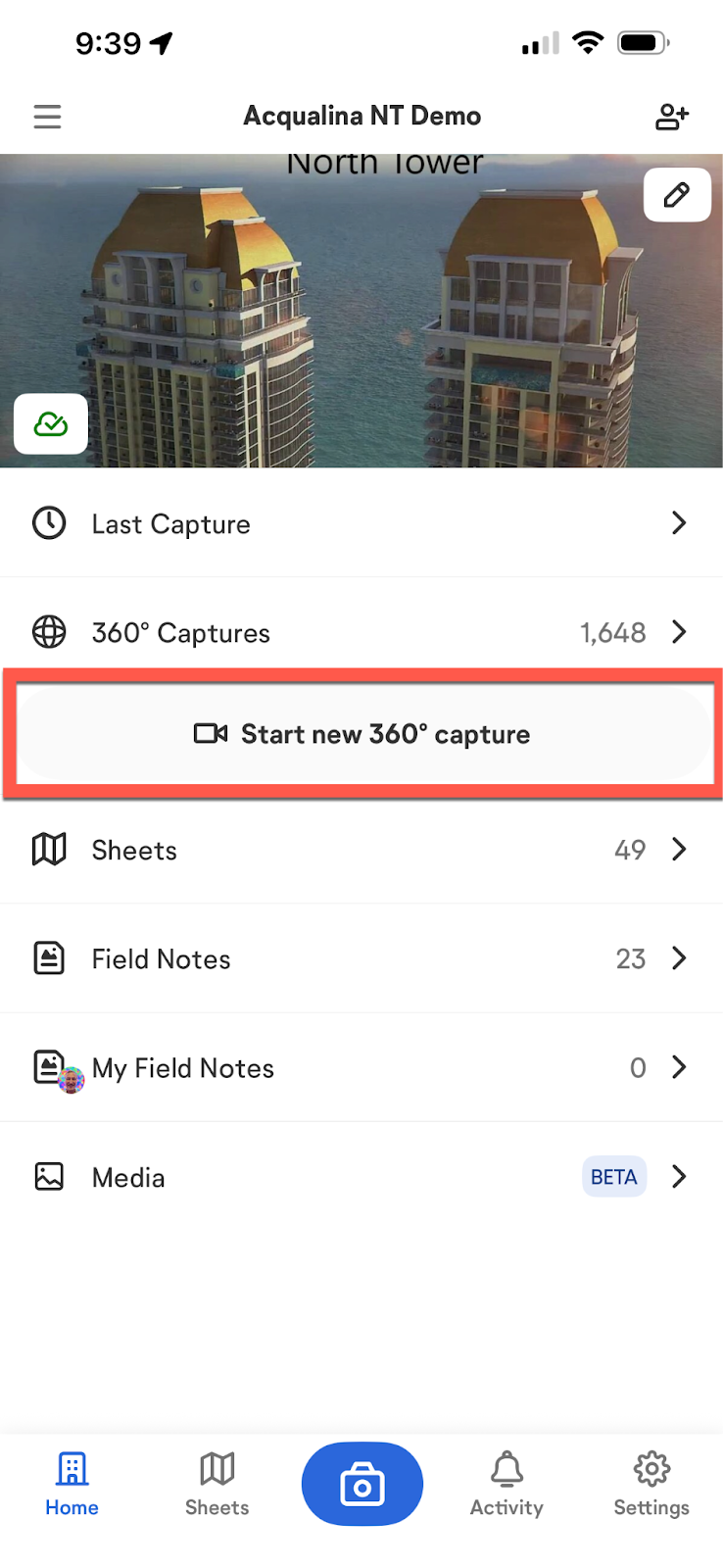
Official OpenSpace illustration: start a new 360° capture from the project. Demo project shown; app appearance may vary. Select the image to enlarge.
Capture 360 video and change floors
Use this workflow for a project with its sheets already prepared, a supported 360° camera and a compatible mobile device. Capture access requires an Editor, Site Administrator or Organization Administrator role.
- Open the project in the OpenSpace mobile app. Select Start new 360° capture, then 360° Video.
- Switch on the camera, select its brand and follow the app's connection steps. Name the capture or skip the optional name.
- Select the correct sheet. Zoom in and mark your actual starting position beside an identifiable feature, then select Start capturing.
- Complete that floor. To continue on another floor, select Next sheet, then Yes, start new. Choose the next floor's sheet and starting position.
- When finished, select End Session and confirm. Upload the captures before reviewing them online.
Each floor needs a separate capture. Several captures can belong to one session; do not continue one capture across different floors.
If you need help
Tell our Support Specialist your camera model, app version and the step where the workflow stops. Attach a redacted error screenshot if useful. Keep passwords and private project records out of the ticket.
Open ACE's illustrated Onboarding & Field Guide
Need a hand with your setup?
Tell our Support Specialist the exact model, version, symptom and checks already completed. Redact private information from screenshots.
Submit TicketUpdated 251008