
Frequently Asked Question
Uploading Your 360 Video Capture - Desktop Sync App
ACE KNOWLEDGE BASE · OPENSPACE
Use the correct regional Desktop Sync app and follow the upload through to processing.
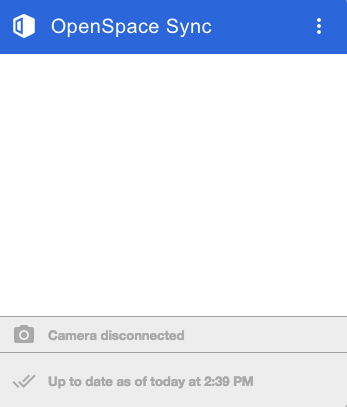
Official OpenSpace Desktop Sync illustration: camera connection and update status. Use the build for your project’s server region.
Upload captures with Singapore Desktop Sync
Desktop Sync requires a paid OpenSpace contract. Use the build matching your project's server region. For projects hosted at sgp.openspace.ai, use the Singapore Desktop Sync download. Follow your organisation's software-installation policy.
- Open the correct regional Sync app and check for updates using its three-dot menu.
- Switch on the camera and connect it to the computer with a suitable USB data cable.
- Check whether the camera is detected and the upload begins. If not, confirm the camera's model-specific USB mode, cable and port.
- Wait for the upload progress to complete. OpenSpace has then received the files for processing; this is separate from the capture becoming ready to view.
Desktop Sync, Web Upload and Mobile Upload are different workflows. If installation or USB access is restricted, ask your administrator which supported method is permitted before changing the setup.
If the upload does not progress
Record the project region, camera model, Sync version, displayed status and time of the attempt. Send our Support Specialist a redacted error screenshot. Retain the original captures while the issue is assessed. Do not assume an upload-complete message guarantees a fixed processing deadline.
ACE's illustrated upload guide
Need a hand with your setup?
Tell our Support Specialist the exact model, version, symptom and checks already completed. Redact private information from screenshots.
Submit TicketUpdated 250606