
Frequently Asked Question
Multimedia Management couldn't add in new folder path as "Media Folder"
If a folder cannot be selected as a media source, check the shared folder, account permissions and current application interface first. Do not delete hidden NAS system folders or media databases to make a path appear.
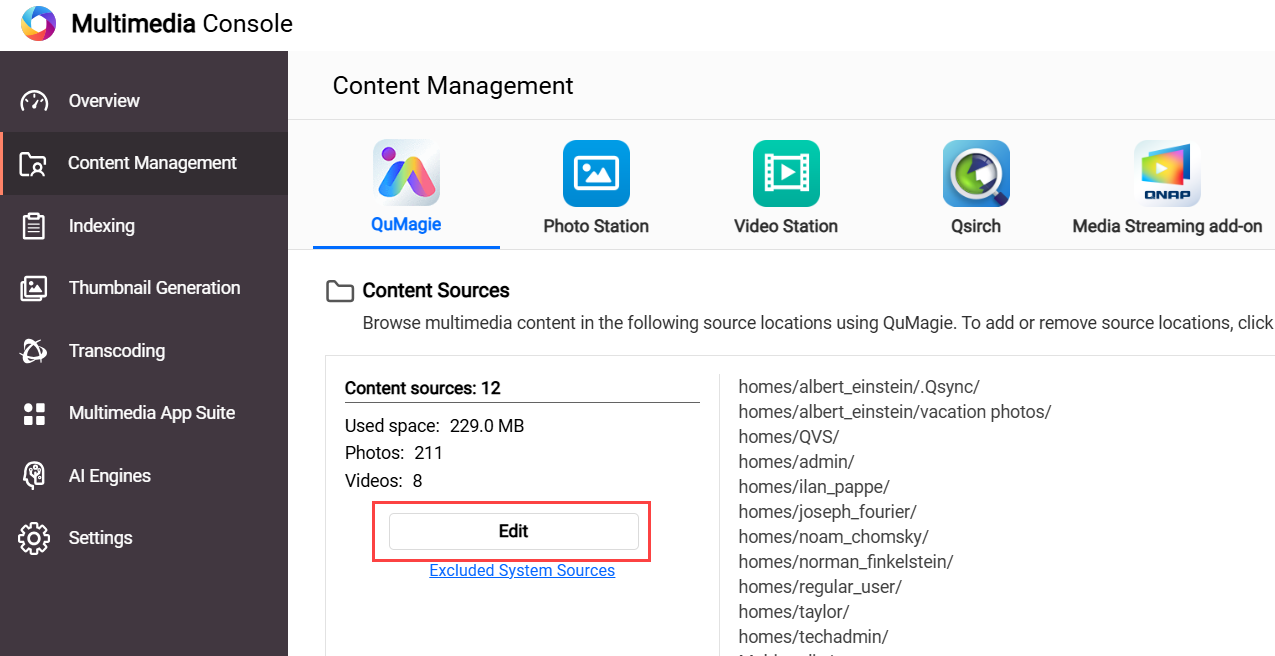
- Confirm the source exists. Use File Station to locate the wanted shared folder and open a sample media file. If the data is unavailable there, resolve that storage or access issue first. Record the exact model, QTS/QuTS hero and Multimedia Console/QuMagie versions.
- Use the content-source selector. Open Multimedia Console > Content Management > QuMagie. Under Content Sources, click Edit, select the appropriate shared folder in the folder panel and choose Apply. QuMagie also provides a content-source setting under its Content Management settings.
- Check the intended user’s read access. An administrator should review the shared-folder and file permissions. Grant only the access the user is meant to have. Do not enter a hidden operating-system path or grant broad access to unrelated folders as a workaround.
- Verify the selected source. Reopen the source list and confirm that the folder remains selected. Allow indexing and thumbnail processing to finish, then check the same sample file in QuMagie.
Before any rebuild: QNAP warns that media re-indexing deletes and rebuilds indexed information, including thumbnails, tags and QuMagie albums. Original media files are not erased by re-indexing itself, but library organisation can be lost. Re-indexing is a separate recovery decision, rather than the first response to a folder-selection problem.
If the selection is rejected, disappears again or the application reports an error, submit an ACE Support ticket with redacted source settings, the precise error and installed versions. Preserve the existing media and library configuration while our Support Specialist checks the cause.
Updated 260223