
Frequently Asked Question
Qfinder Pro cannot find my QNAP NAS. How do I discover or add it safely?
QUICK ANSWER
Qfinder's automatic discovery uses local broadcast traffic. A NAS on another subnet can be reachable by its address even when it does not appear automatically.
Applies to: Qfinder Pro on a supported computer and an existing QNAP NAS. Discovery is separate from initialising a new or unconfigured system.
Work through these checks
- Confirm basic connectivity. Check power, link lights and the trusted network connection. Compare the computer's address/subnet with the NAS's known network.
- Check the intended segment. Use the same local subnet/segment for automatic discovery. Guest WiFi, isolation, VLAN boundaries and a remote VPN can prevent broadcast discovery.
- Review application access. Check whether local firewall/security rules allow Qfinder on the appropriate trusted network. Use a narrow application rule rather than disabling protection generally.
- Use the supported manual option. If the current NAS address is known and reachable, use Qfinder Pro's documented Add/manually add function to add that NAS instead of assuming it must be reset.
- Confirm the system identity. Compare the discovered model/name/address with the intended unit, then open its existing interface or share through the normal authorised route.
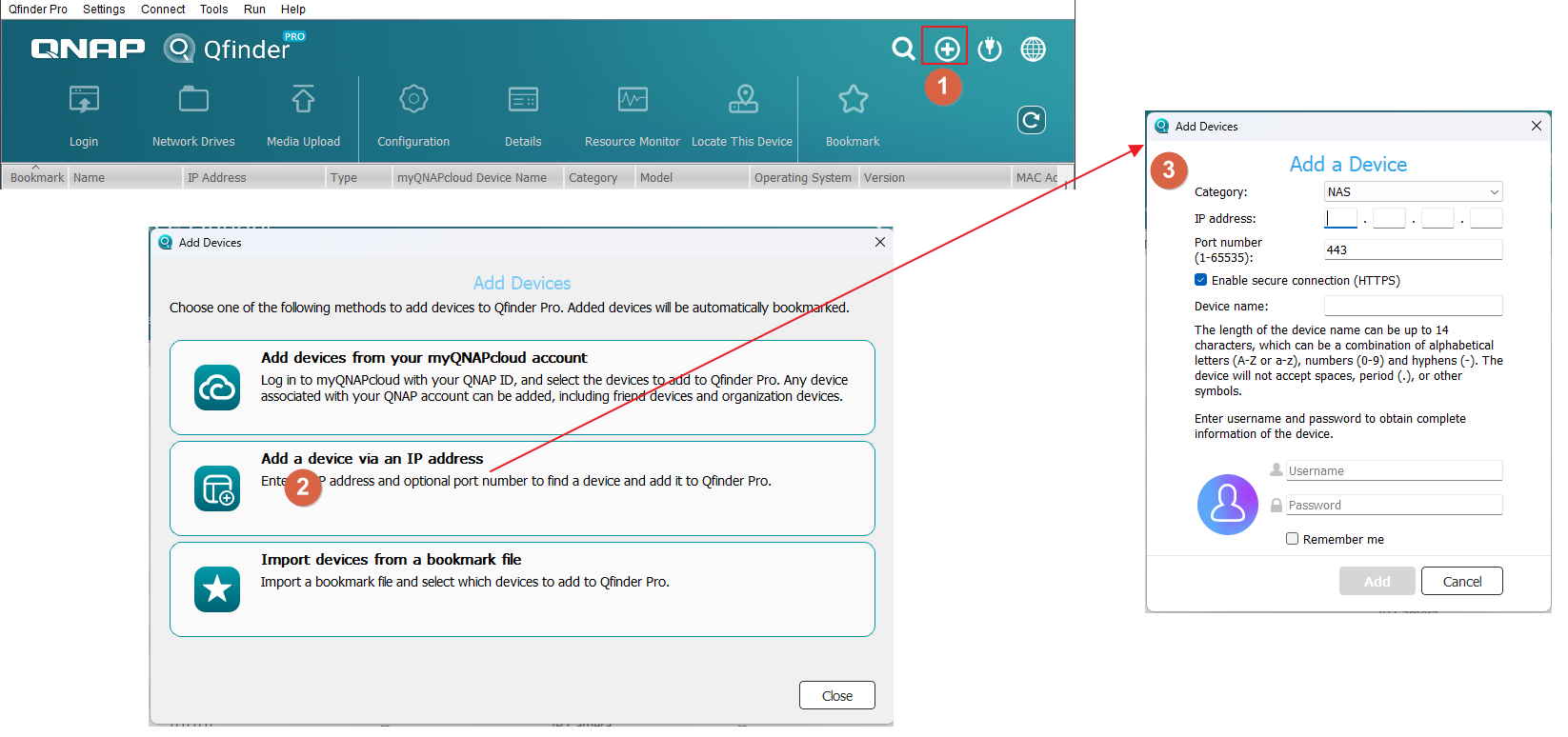
Confirm the result
The correct NAS is either discovered on its local segment or accessed through the confirmed address. Record which method worked.
Before going further: Do not click Initialise, reconfigure disks or factory-reset a NAS containing data just because broadcast discovery failed.
If you need help
Include these details in your ticket: NAS/model, computer/Qfinder version, subnet/VLAN arrangement and whether the current address opens in a browser.
Related guidance: My QNAP works on the LAN but cannot reach the internet or cloud backup. Is the default gateway wrong? · How do I regain local NAS access when QuFirewall blocks my computer?
Updated 261111