
Frequently Asked Question
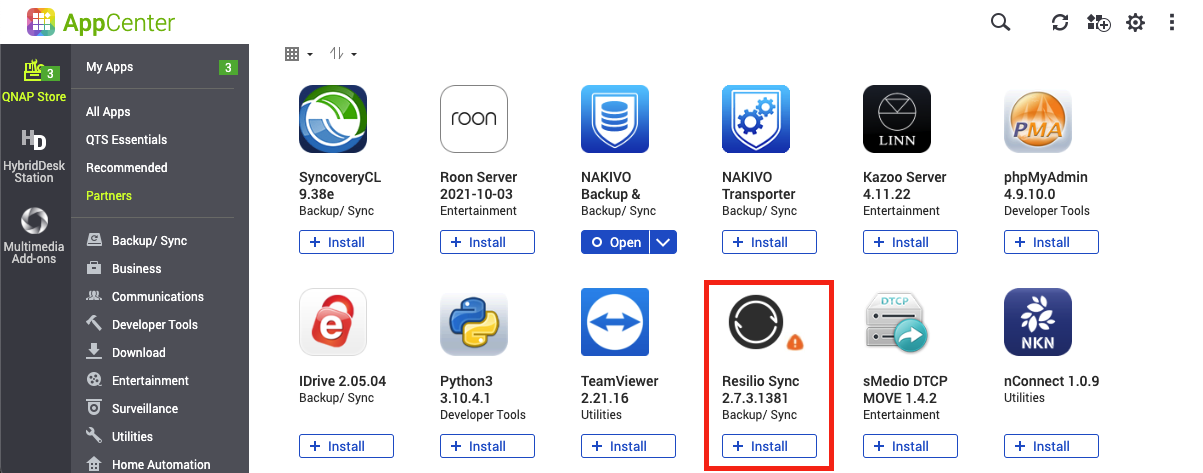
QNAP App Center reports an invalid or expired digital signature. Should I allow the installation?
QUICK ANSWER
Do not bypass the warning automatically. Confirm the app and publisher and obtain the current supported package through the official App Center before changing trust settings.
Applies to: QTS/QuTS hero App Center or Security Counselor signature warnings. An expired signature and a tampered signature are not the same condition.
Work through these checks
- Record the exact warning. Note the app name, version, publisher and whether installation, update or an already installed package triggered it.
- Check the supported package. Compare the app with the current official release for the NAS model and operating system. Retain configuration and a recovery plan before an update that could affect a service.
- Use the supported update route. For a genuine QNAP package, use App Center or the manufacturer's documented installation route. If the official current package still triggers the warning, stop and obtain a package review.
- Review unexpected third-party apps. Ask the administrator to confirm their provenance and purpose. A familiar name alone is not evidence that a downloaded package is trustworthy.
Confirm the result
The supported package installs or updates with its trust state understood, and its required service works after the planned change.
Before going further: Do not enable unsigned installations broadly or install an arbitrary older package to silence the alert. Preserve the warning and source file for private review.
If you need help
Include these details in your ticket: App/NAS/software versions, exact warning and package source. Do not send configuration secrets.
Related guidance: How do I regain local NAS access when QuFirewall blocks my computer?
Updated 261111