
Frequently Asked Question
How do I set up a supported QNAP QVPN server and verify remote access?
QUICK ANSWER
Choose the supported server protocol and configure the client to match it. A VPN tunnel connecting successfully does not, by itself, prove that NAS shares or other LAN devices are reachable.
Applies to: QVPN Service on supported QTS/QuTS hero models. Protocol and client availability depend on the installed software and platform.
Work through these checks
- Define server versus client use. Confirm whether the NAS must accept remote VPN users or connect out to another VPN server. These roles use different configuration paths.
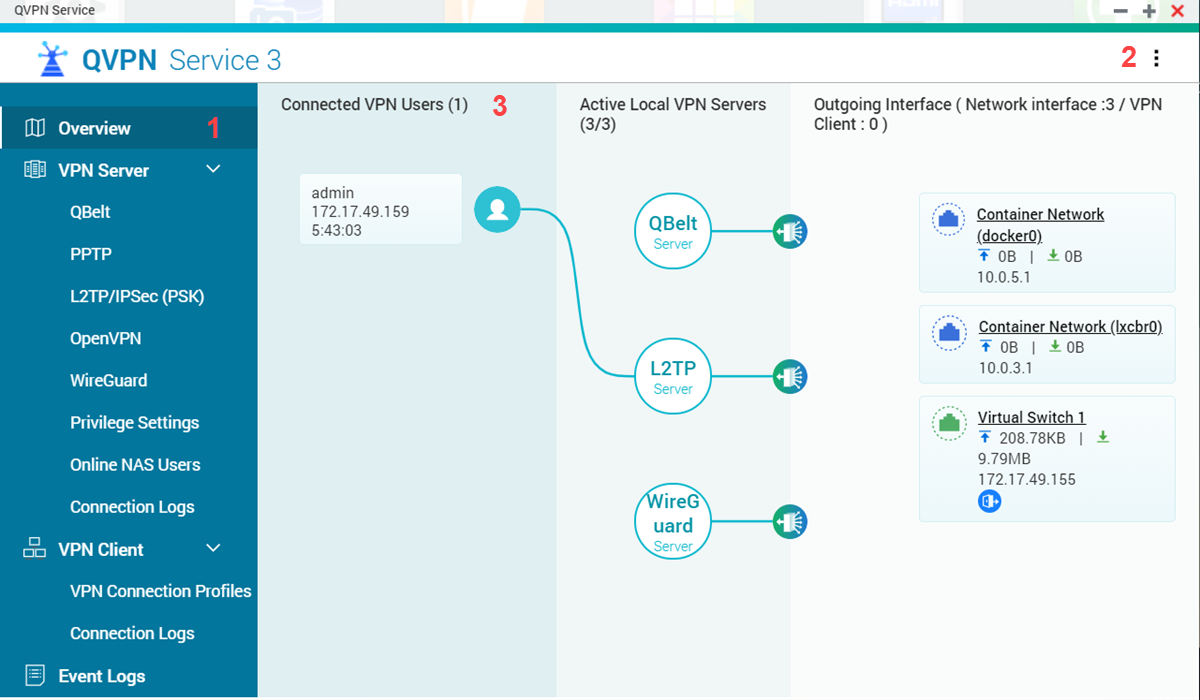
- Check software and protocol support. Review the model and QVPN Service version. Select a supported secure protocol, such as OpenVPN or WireGuard where available, and use the matching client workflow.
- Set narrow user/network access. Configure the required VPN account or peer and the intended reachable networks. Protect configuration files and keys as credentials; retain a local management and rollback path.
- Check the internet route. Review the gateway, ISP/CGNAT situation and any precisely required router/firewall rule. A DDNS name alone does not make an inbound VPN reachable.
- Test from a genuinely external connection. Use mobile data or another external network. Confirm tunnel establishment, then test the intended NAS address, application/share and required route.
- Review a tunnel with limited access. Compare local/remote subnet ranges, allowed routes, DNS and NAS permissions. Use the existing limited-access guide for the relevant client rather than repeatedly reinstalling it.
Confirm the result
The authorised remote client reaches the required service through the intended tunnel and unrelated services remain restricted.
Before going further: Do not expose all NAS services, enable router DMZ or reuse legacy insecure-protocol settings simply because an old screenshot shows them.
If you need help
Include these details in your ticket: NAS/QVPN/client versions, protocol, external-test result and a sanitised route/subnet diagram. Never include private keys or passwords.
Related guidance: Why does QVPN Client connect but show Limited access or no NAS applications? · Why can I open UniFi remotely, but my NAS VPN or port-forwarded service fails behind CGNAT? · UniFi VPN connects on mobile data but cannot reach my NAS from hotel or home Wi-Fi. Why?
Updated 261111